Two ways to connect
Sign in with Google. In NORG, open Analytics → Analytics settings → Google connections and choose Sign in with Google. This is the quickest route when the person setting NORG up can already see the Google data. It covers Google Analytics and Search Console. Merchant Center connects only by adding the address below.
Add NORG’s service account (this guide). A service account is a Google account that belongs to an application instead of a person. You add its address as a read-only user, exactly as you would add a colleague. Choose this route when your company does not allow sign-in from outside applications, when an agency manages your Google products, or when you would like the NORG team to be able to look at the same figures while helping you: NORG’s staff and its assistants read your data through this same read-only address.
The address to add
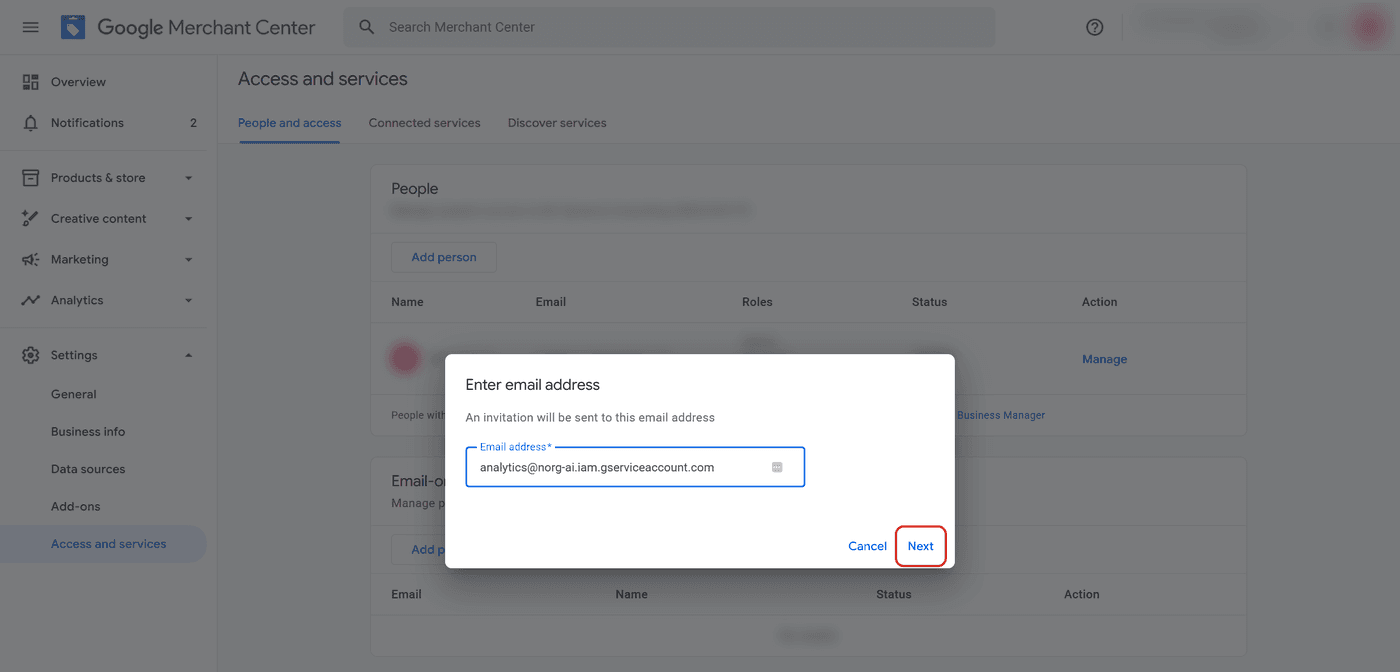
analytics@norg-ai.iam.gserviceaccount.comIt is the same address in every product below. Nobody reads mail sent to it, so if Google offers to notify the new user by email you can leave that switched off. You need to be an administrator (Google Analytics, Merchant Center) or an owner (Search Console) to add a user.
Google Analytics
Why: NORG reads your visit figures to show how many people arrive from AI assistants such as ChatGPT, including visits that arrive without saying where they came from.
Steps
- Open Google Analytics and choose your website’s property.
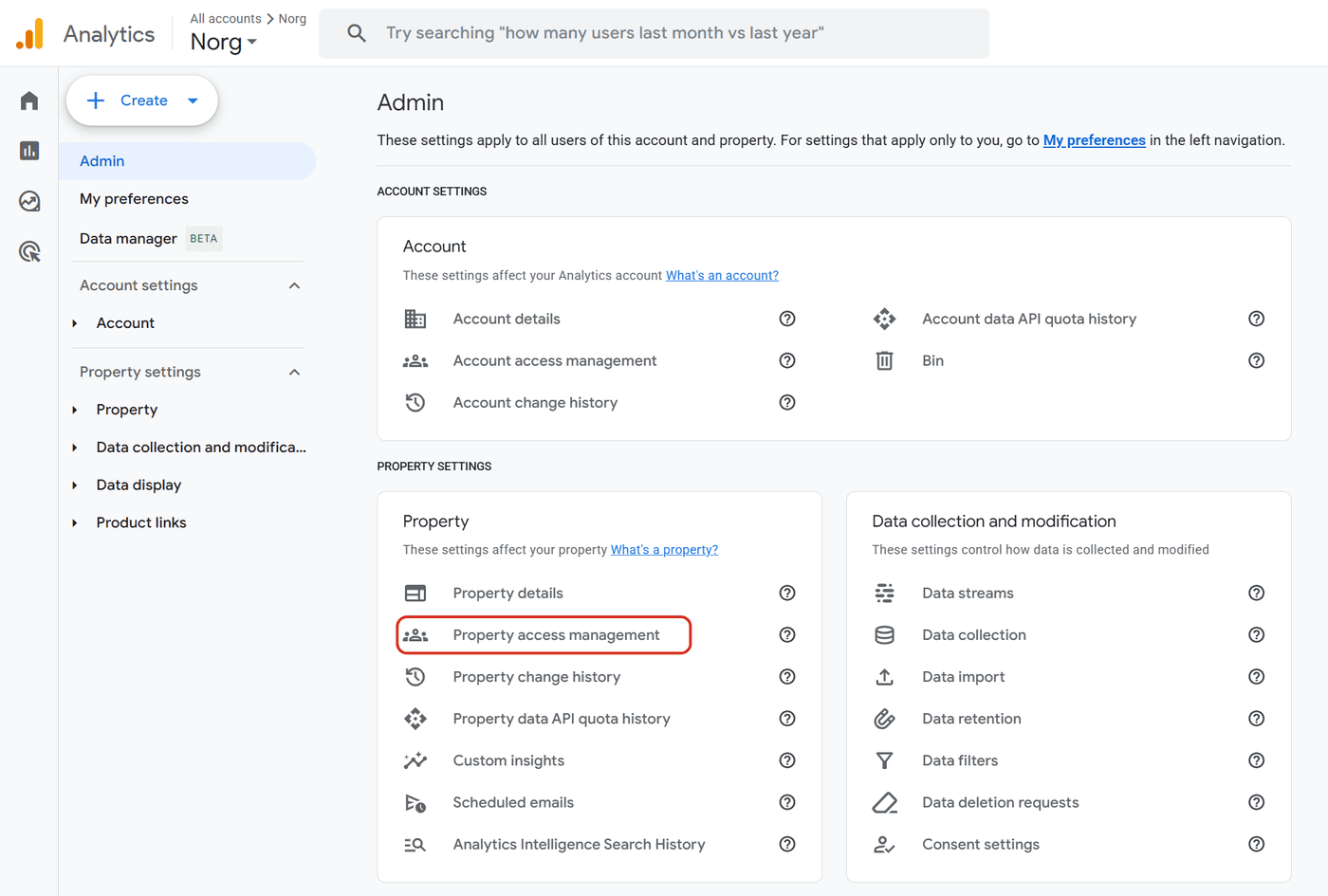
- Choose Admin (the cog at the bottom left), then Property access management.
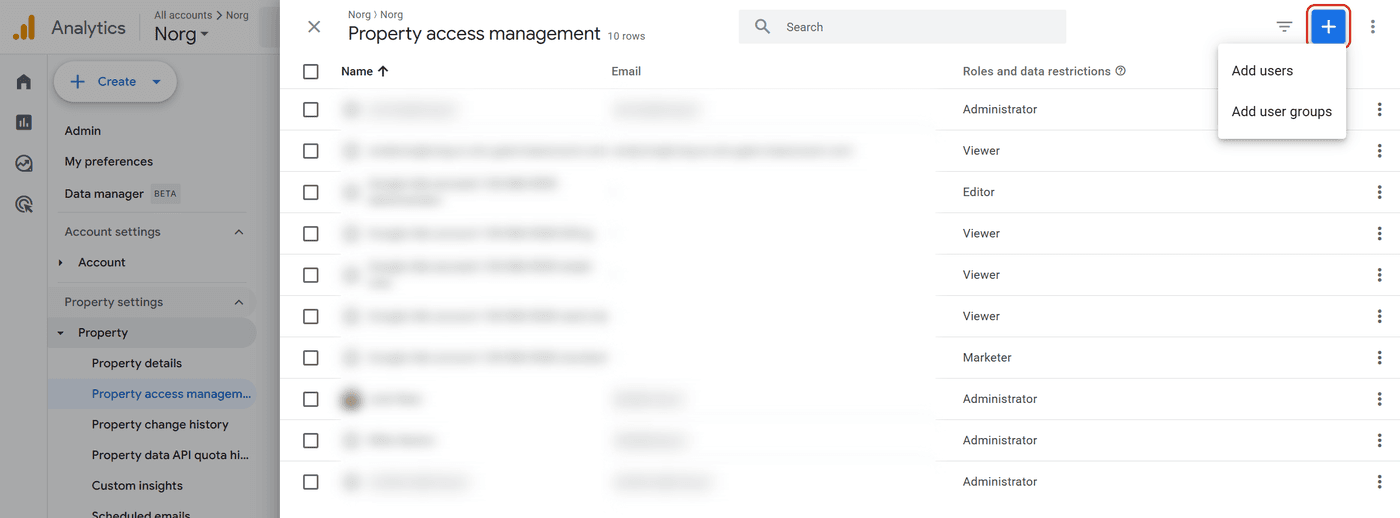
- Choose the blue + button at the top right, then Add users.
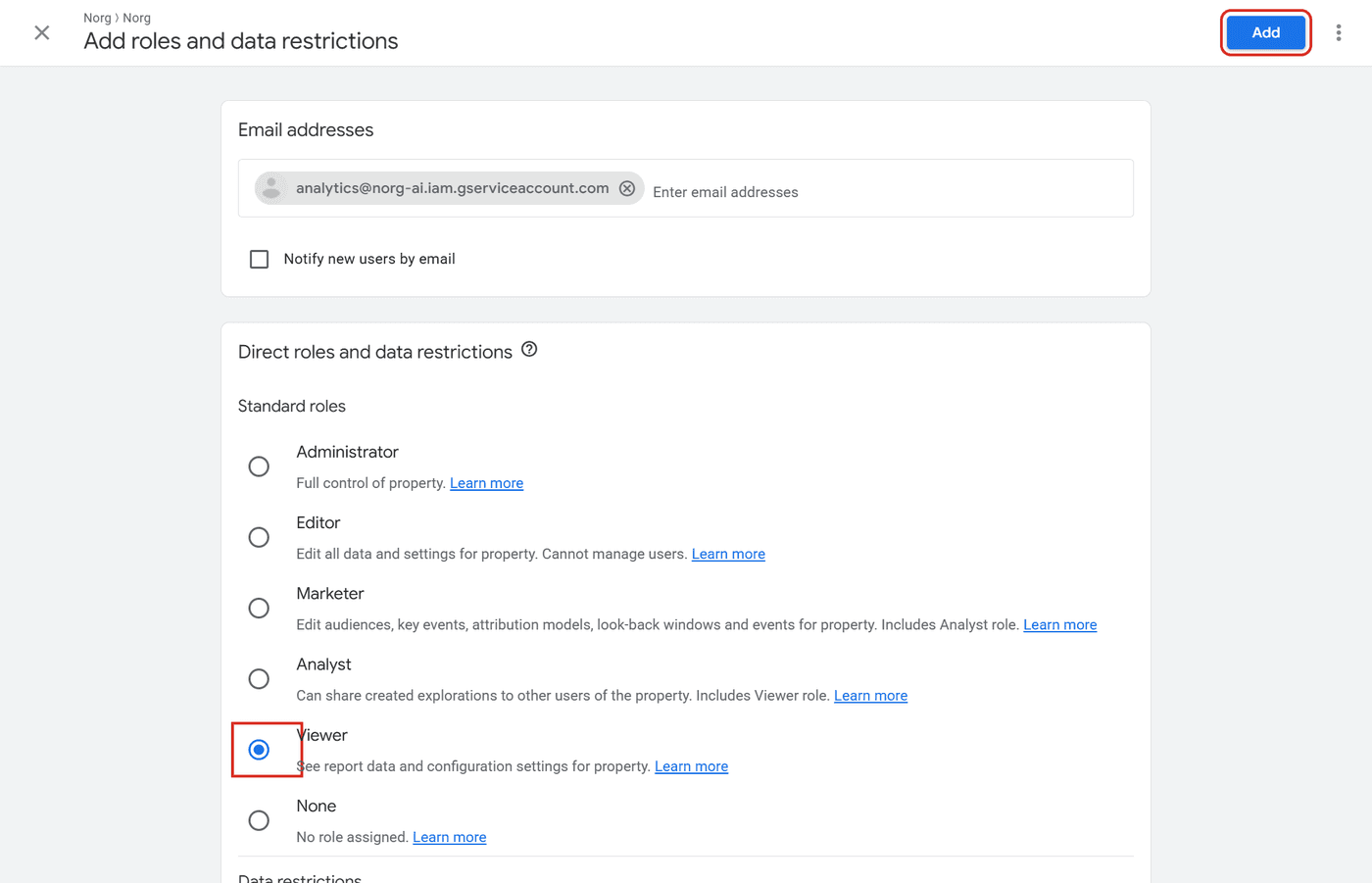
- Paste the address into Email addresses and untick “Notify new users by email”.
- Under Standard roles, leave Viewer selected. Leave both Data restrictions unticked.
- Choose Add.
What NORG can do
- See this property’s reports and the data behind them.
- See how the property is set up.
What NORG cannot do
- Change any setting, event, audience or report.
- Add, change or remove users.
- See or change billing, or reach any other property or product in your Google account.
Removing the access later
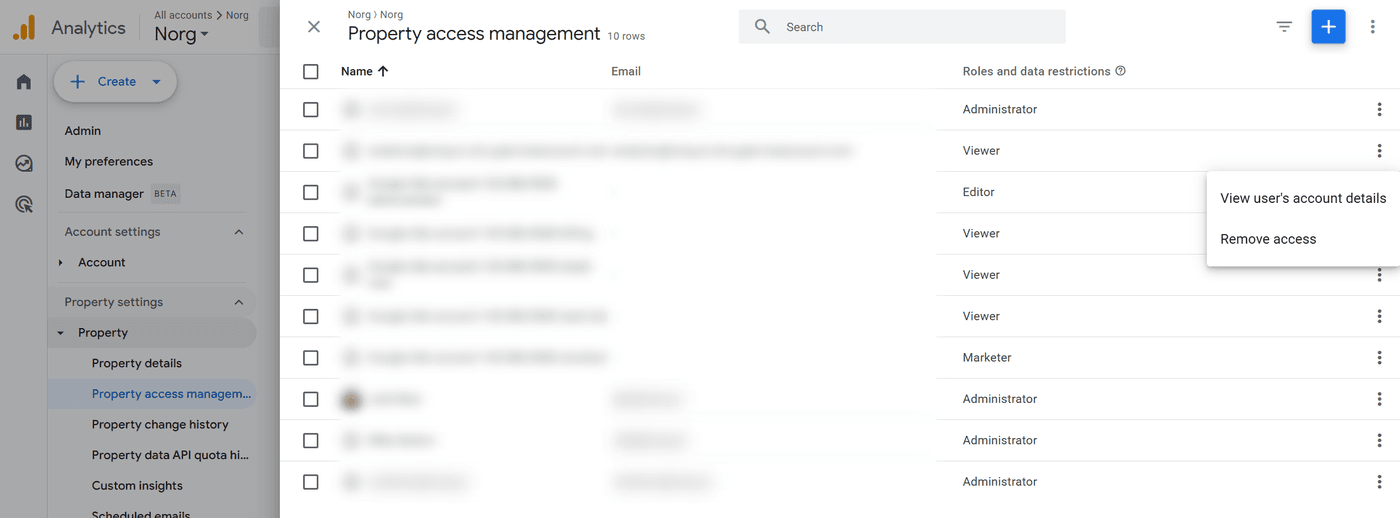
Open Admin, then Property access management. Choose the three dots at the end of the row for NORG’s address, then Remove access. NORG can then no longer read new figures. Figures already copied into NORG are kept.
Search Console
Why: NORG reads your search figures to show how often people search for your brand, and the question-style searches where Google shows an AI Overview.
Only an owner of the Search Console property can add a user. If Add user is missing, ask whoever verified the property.
Steps
- Open Search Console and choose your website’s property at the top left.
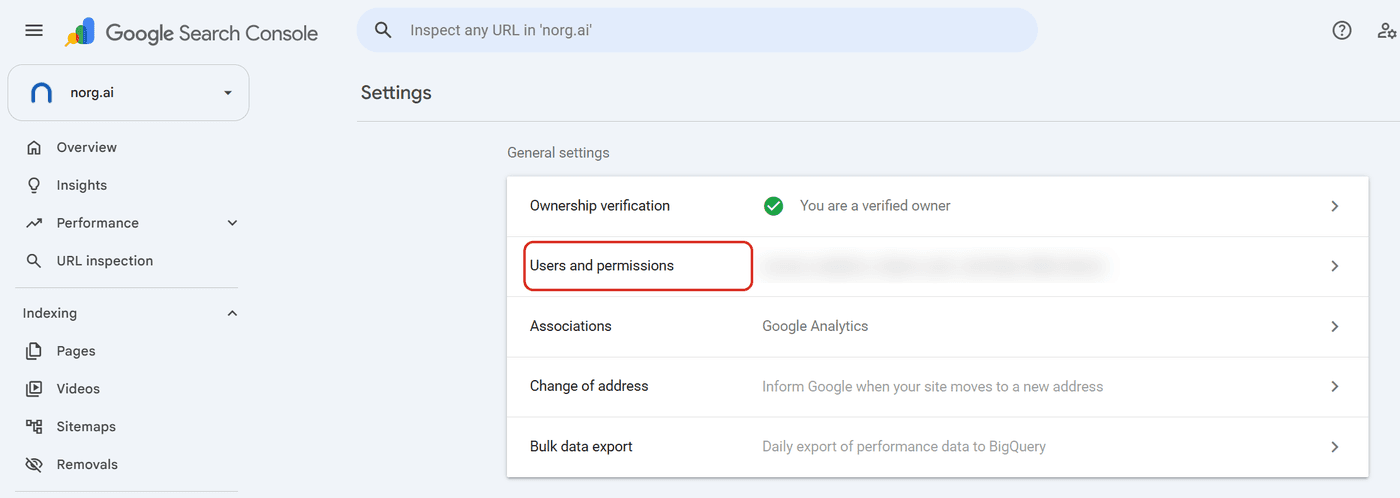
- Choose Settings at the bottom of the left menu, then Users and permissions.
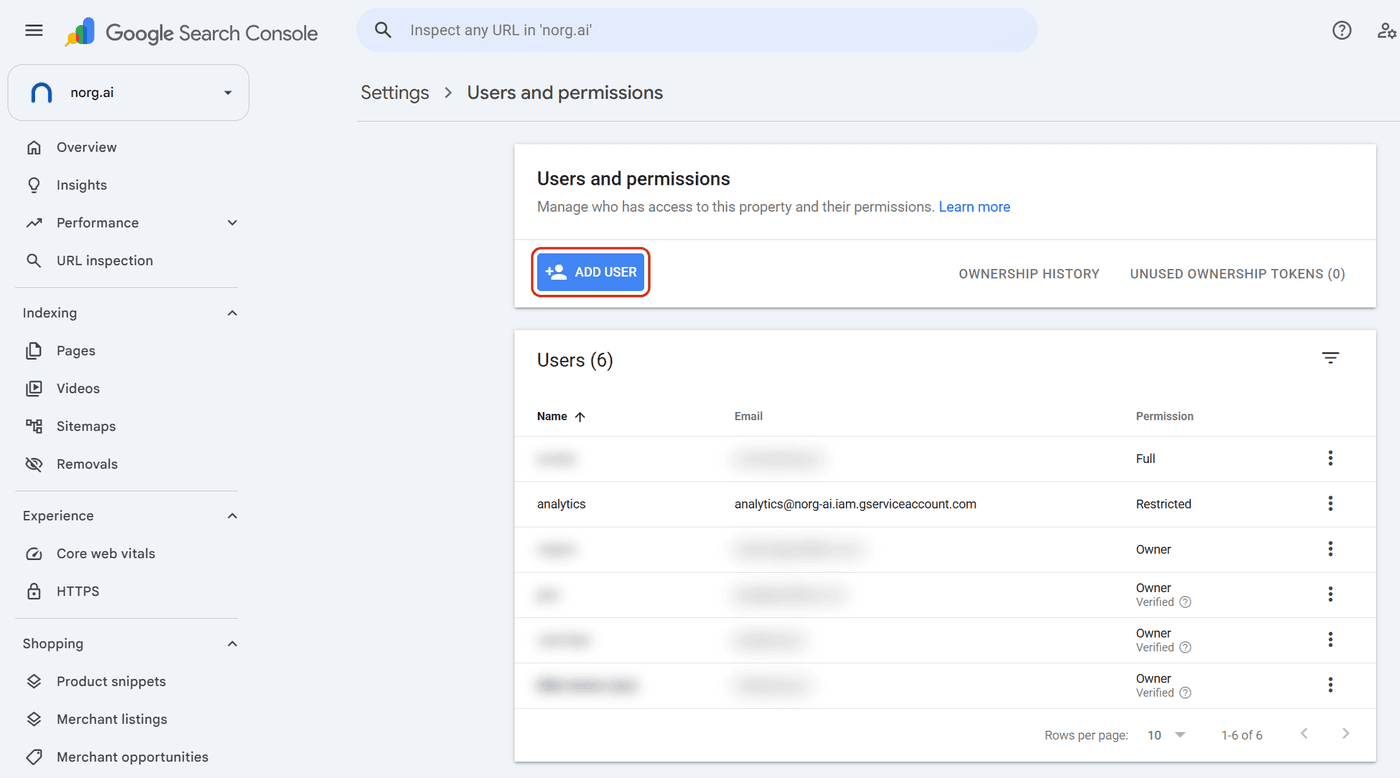
- Choose Add user.
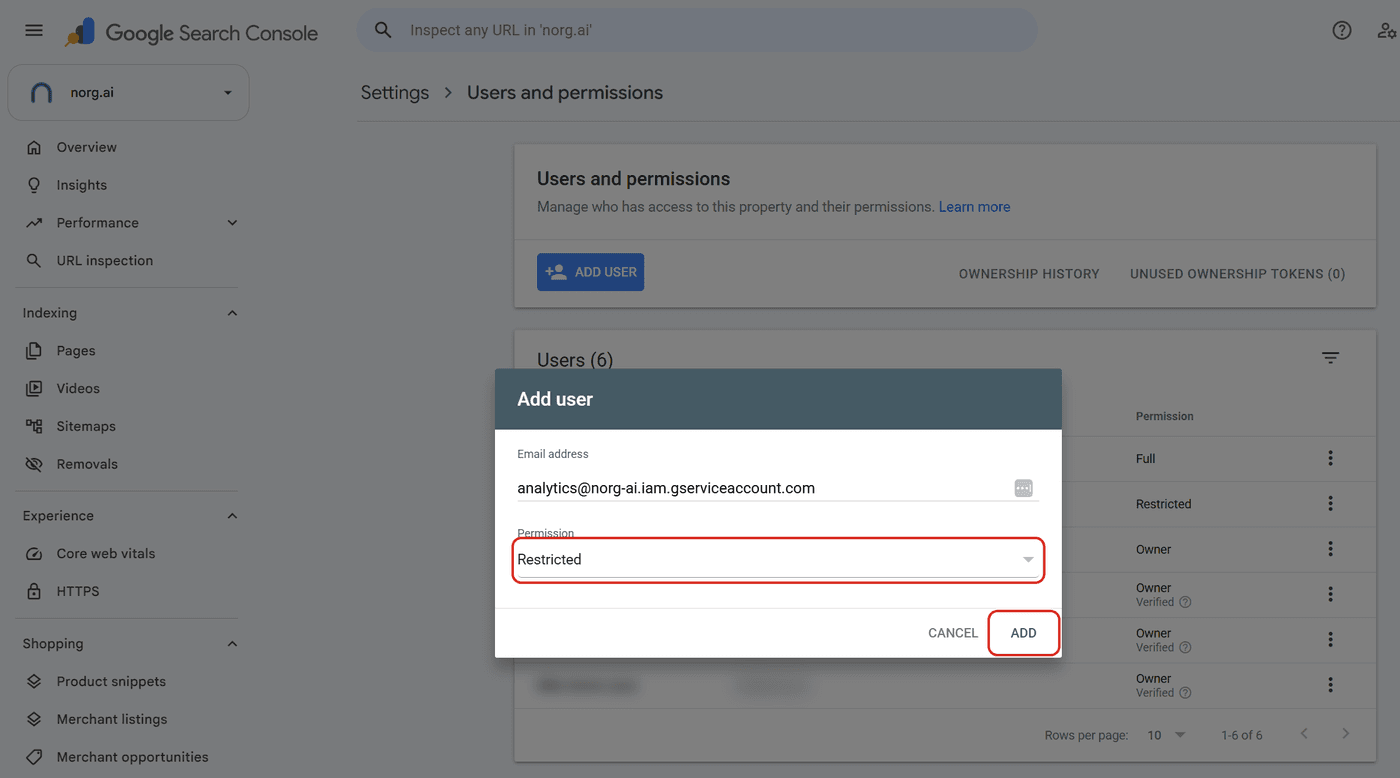
- Paste the address into Email address and set Permission to Restricted.
- Choose Add.
What NORG can do
- See this property’s search figures: searches, clicks, impressions and positions.
What NORG cannot do
- Change any setting, submit a sitemap or ask Google to remove a page.
- Add, change or remove users, or become an owner.
- See or change billing, or reach any other property or product in your Google account.
Removing the access later
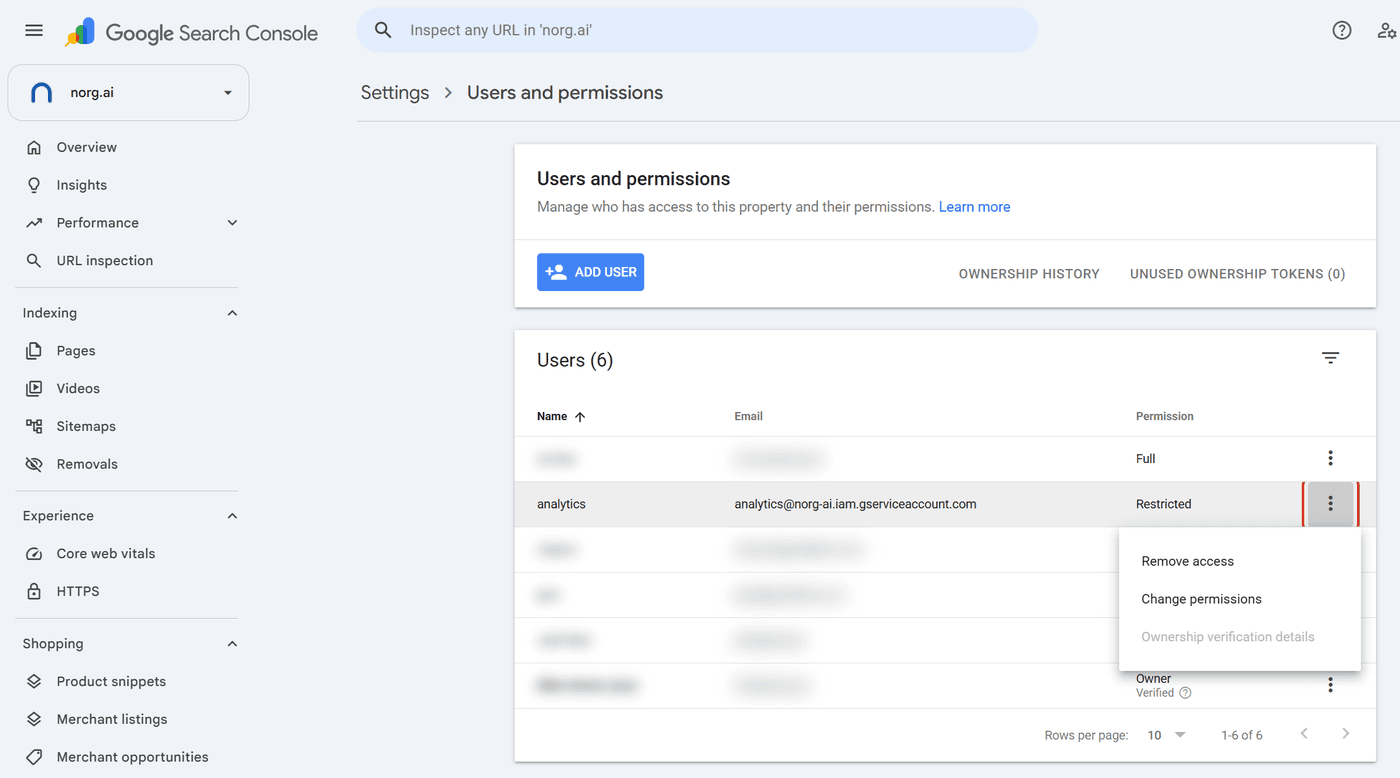
Open Settings, then Users and permissions. Choose the three dots at the end of the row for NORG’s address, then Remove access. NORG can then no longer read new figures. Figures already copied into NORG are kept.
Merchant Center
Why: NORG reads your product list and Google’s approval status for each product, and how many clicks and impressions each product gets in Google Shopping.
Signing in with Google inside NORG does not cover Merchant Center. Adding this address is the only way to connect it.
Steps
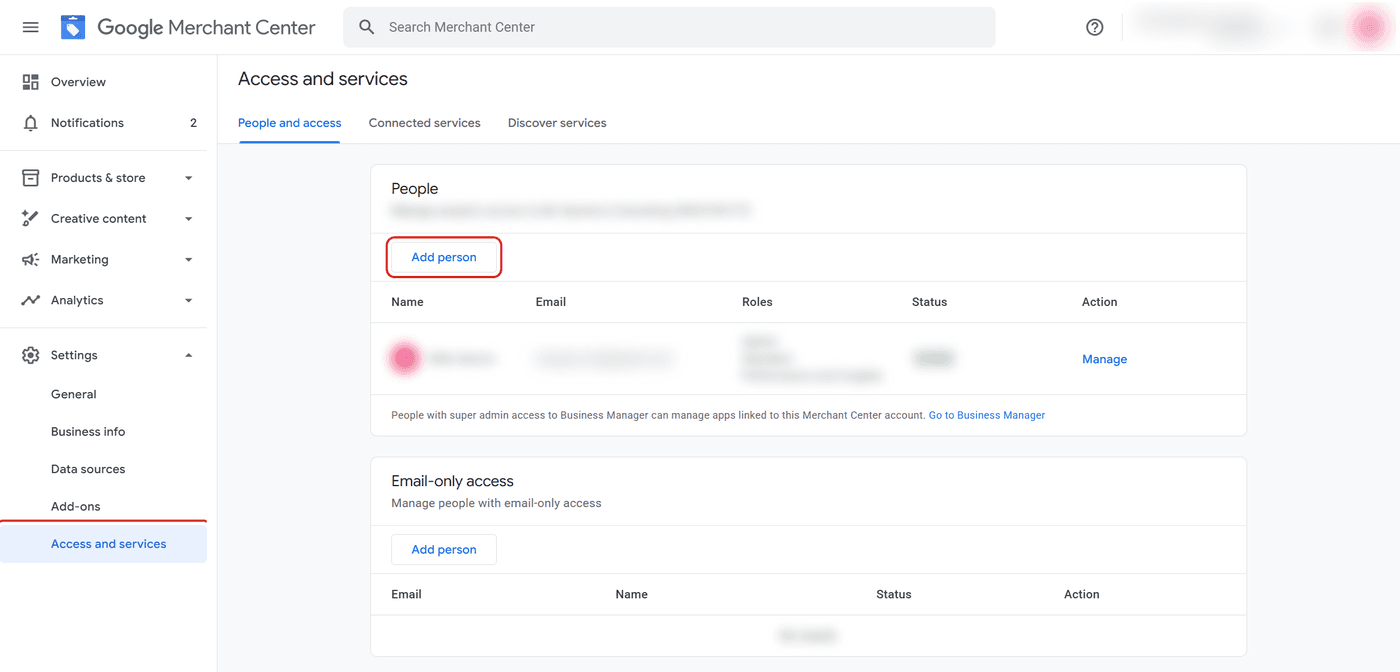
- Open Google Merchant Center and choose your account.
- In the left menu choose Settings, then Access and services. Stay on the People and access tab.
- Under People, choose Add person.
- Paste the address into Email address and choose Next.
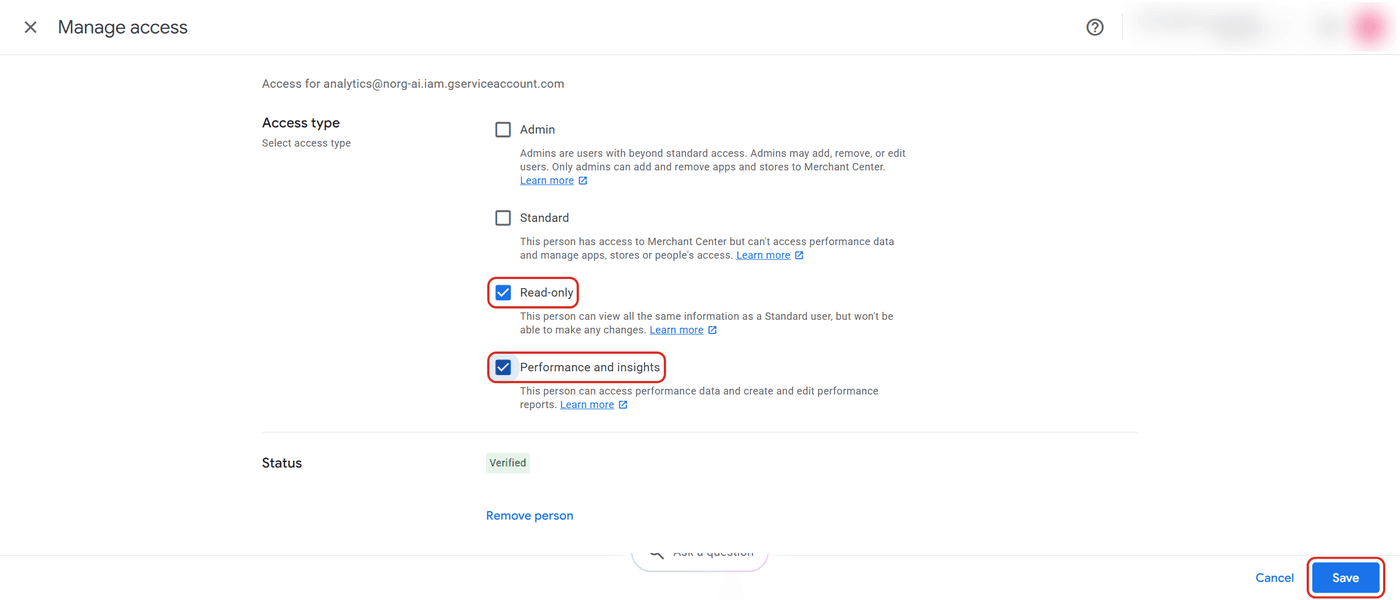
- Under Access type, tick Read-only and Performance and insights. Both are needed: Read-only lets NORG read your product list and Google’s approval status, and Performance and insights lets NORG read Shopping clicks and impressions for each product.
- Leave Admin and Standard unticked. NORG only reads.
- Choose Add user. The change can take a few minutes to apply.
- Send NORG your Merchant Center ID. It is the number at the top right, under your account name.
- Already added the address with Read-only alone? Choose Manage on its row, tick Performance and insights, then Save.
What NORG can do
- See your products, data sources and account settings, as Google’s Read-only access type allows.
- See performance figures such as Shopping clicks and impressions for each product. Google’s Performance and insights access type also allows creating and editing performance reports; NORG only reads them.
What NORG cannot do
- Change or delete products, data sources or account settings.
- Add, change or remove people, apps or stores.
- Reach any other product in your Google account.
Removing the access later
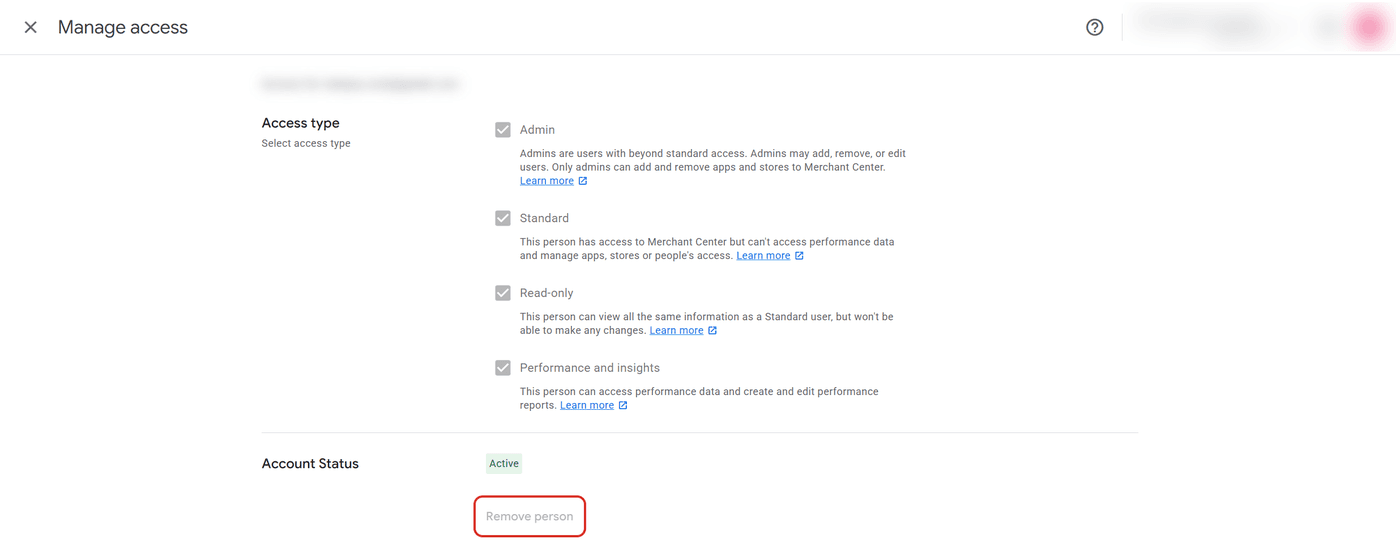
Open Settings, then Access and services. On the People and access tab choose Manage on the row for NORG’s address, then Remove person.
Finish in NORG
Back in NORG, open Analytics → Analytics settings → Google connections. The Google Analytics and Search Console cards list the properties NORG can now see that match your website. Choose Connect beside the right one. NORG then starts copying in your history, and the card shows how far it has reached.
Nothing listed? Reload the page, then check that the address was added to the property for the same website as your NORG workspace. Still stuck? Write to solutions@norg.ai.