⚠ Check your Cloudflare Workers plan before installing
On the Free Workers plan an account is capped at 100,000 worker requests per day. Because the route this install adds is {domain}/*, once that cap is hit Cloudflare stops invoking the worker and errors every request to your site — humans included, not just AI agents. This is the one way installing this worker can take your whole site down, and the install preflight only warns about it (code free_workers_plan) — it does not block you from proceeding anyway.
This is the Workers plan — account-wide, checked under Workers & Pages → Plans in the Cloudflare dashboard. It is separate from your zone plan (Free/Pro/…, shown on the zone's Overview page), which the amber alert below cares about. If you are near 100k requests/day across your whole account (other workers on the account count too), upgrade to the Workers Paid plan first. See how to upgrade →
⚠ Three Cloudflare bot settings can stop this install working
All three live under Security → Settings on your zone, filtered to Bot traffic. The first two block the AI-agent traffic this worker exists to serve — and the install's own health probe, which is why an install can fail with HTTP 403 before anything else is wrong. A failed install rolls itself back automatically — the route is removed and your site is left untouched — so it is always safe to fix the setting and re-run. The third fails the opposite way: everything reports healthy and the crawlers still never arrive. Turn all three off before installing.
- Bot Fight Mode (
fight_mode) — must be off. This one genuinely cannot be worked around. Cloudflare runs it outside the Ruleset Engine, "in a separate evaluation pipeline where Skip, Bypass, and Allow actions have no effect" — no WAF rule, ours or yours, can exempt anything from it. It is the bot toggle of the Free zone plan (Pro and above replace it with Super Bot Fight Mode) — check which plan the zone is on from its Overview page in the Cloudflare dashboard. Note that the zone plan is a different thing from the Workers plan in the red alert above; a zone can be on either combination of the two. - Block AI bots (
ai_bots_protection) — must be set to allow: both "Block on all pages" and "Block only on ad pages" count as blocking (API valuesblockandonly_on_ad_pages). This one is skippable in principle — Cloudflare enforces it with its own WAF custom rule, and a Skip rule ordered ahead of it would defeat it — but the rule this install creates skips your Managed Rules, not your custom rules, and never reorders anything you already have, so it will not bypass this for you. Turn it off rather than relying on rule ordering.
Third setting — and the one nothing will warn you about: the managed robots.txt setting — shown in the dashboard as "Set your preference to block training in robots.txt" (is_robots_txt_managed in the API) — must be off. This one blocks nothing. It adds a BEGIN Cloudflare Managed content block to your robots.txt that tells ClaudeBot, GPTBot, Google-Extended, CCBot, Amazonbot, Applebot-Extended, Bytespider and meta-externalagent to stay off the entire site. Compliant AI crawlers read that file before anything else and then never request a page — so the install succeeds, the health probe passes, verification goes green, and the mirror is never fetched by anyone. It is a separate toggle from "Block AI bots": turning that one off does not clear this.
Turning it off removes only Cloudflare's managed block. Cloudflare merges that block with a robots.txt your origin already serves, so the rules you wrote yourself and your Sitemap: lines are left alone. Afterwards, re-check /robots.txt: it is served with a long max-age (30 days observed on a live zone), so if the managed block is still showing, purge the cached copy. NORG's preflight detects this setting and can turn it off for you during install if you say so — it never changes it on its own.
From 15 September 2026 Cloudflare retires the "Block AI bots" setting, replacing it with separate controls for AI training, AI search, and AI user crawlers. If your dashboard shows those instead, set each of them to allow — the requirement is the same either way: the zone must not block the AI-agent traffic the mirror serves.
Super Bot Fight Mode can stay on. It is a different product from the two above and runs on the Ruleset Engine, so the WAF skip rule this install creates already exempts AI agents and the health probe from it — along with your WAF Managed Rules. If you are on a Pro plan or above with Super Bot Fight Mode enabled, that is the supported configuration and needs no change. Do not turn it off.
Testing this yourself? A scripted request — curl, a monitoring probe, anything that is not a real browser — may be challenged while Bot Fight Mode is on: it pattern-matches automation and issues a JavaScript challenge scripts cannot solve, with no verified-bot allowlist to exempt anyone (that is a Super Bot Fight Mode feature). A normal browser usually passes that challenge, so loading a page with ?agent=true (the worker's testing override — once the worker is installed it forces the mirror version of any page) generally works from a browser either way. Read a blocked self-test narrowly: it confirms the zone challenges unknown automation — it does not tell you whether real AI crawlers are blocked, or exempt some other way. On the Free zone plan nothing is exempt until the setting is off.
What a customer_zone mirror does
A customer_zone mirror is a small Cloudflare Worker that runs on your own zone at {domain}/*. Per request it decides who is asking: AI agents (GPTBot, ClaudeBot, PerplexityBot, …) are served the NORG render of the page at your own URL — no redirect, the URL never changes — while people in a browser and search-index crawlers get your site byte-for-byte unchanged. Two rules are built in and not configurable: it must never break your site (every failure path falls back to your origin), and search engines always see exactly what humans see.
Before you start
- Proxied Cloudflare domain
- Your domain must be on Cloudflare and proxied (orange cloud). A DNS-only (grey cloud) record bypasses Cloudflare and the worker never runs.
- A NORG workspace
- A Content Craft workspace with edge routing available.
- A sitemap
- NORG mirrors your sitemap to decide what to render.
Provision a NORG MCP API key (directory:write)
Install is gated by a single MCP scope: directory:write. Generate a NORG MCP API key that carries it, and use that key for the MCP connection you run manage_edge_routing from.
directory:write is the real requirement. The same scope also authorises purge, uninstall and key rotation — there is no narrower install-only scope today, so provision directory:write rather than looking for a least-privilege alternative that does not exist.
Create a scoped Cloudflare API token
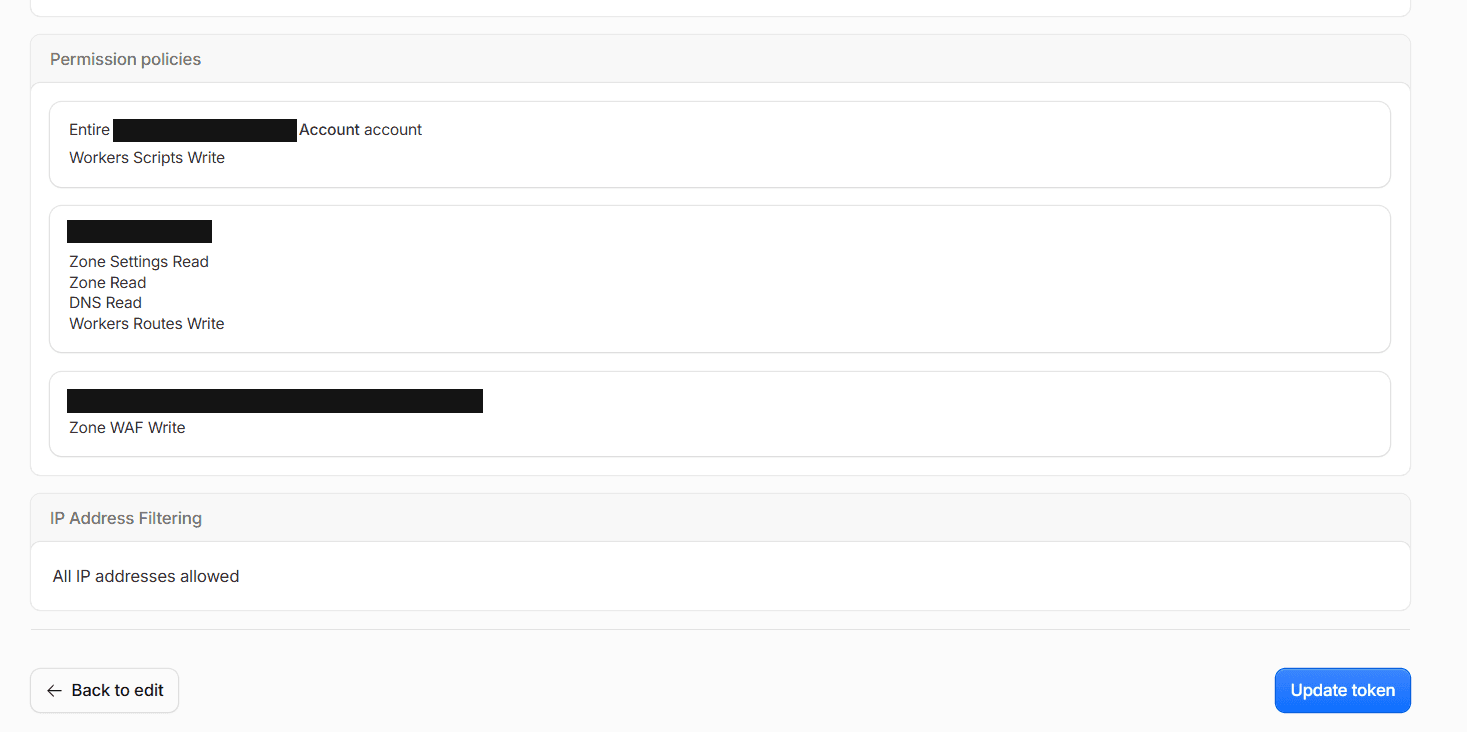
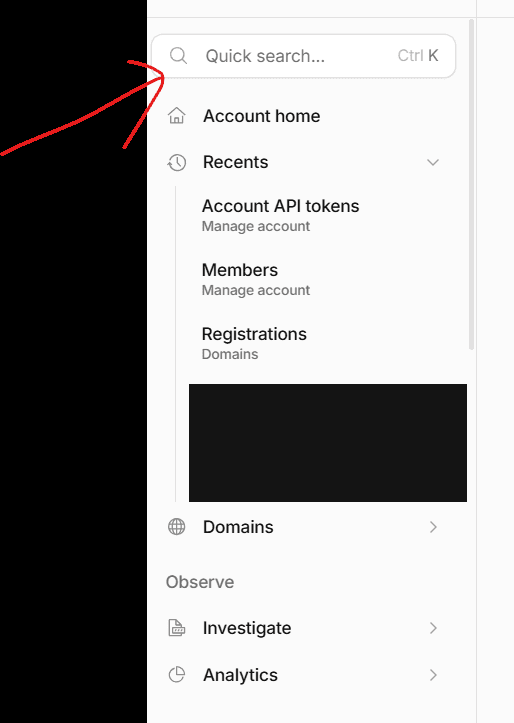
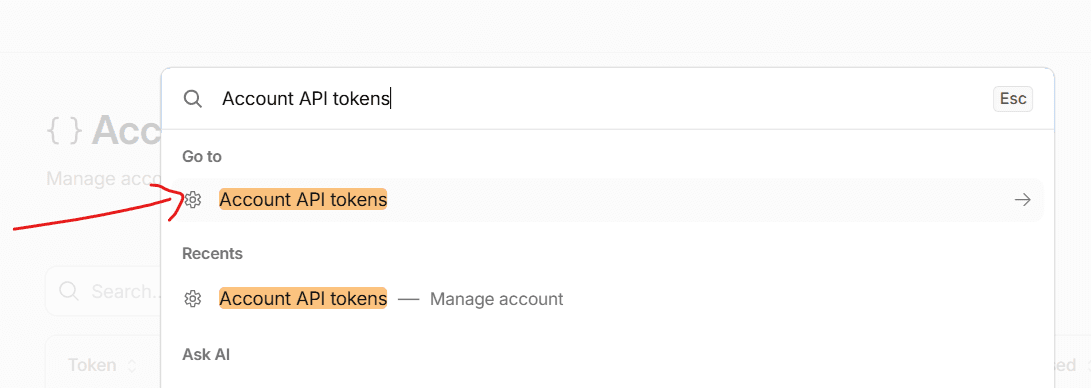
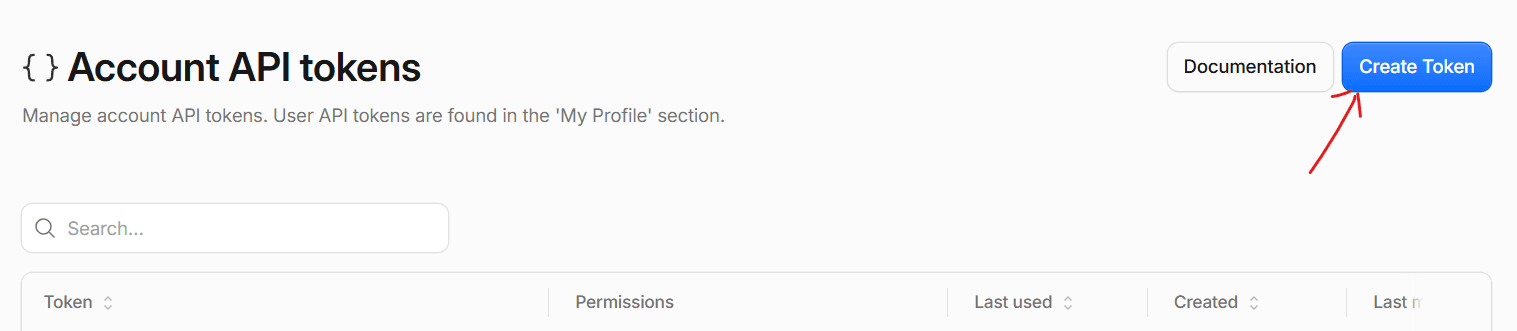
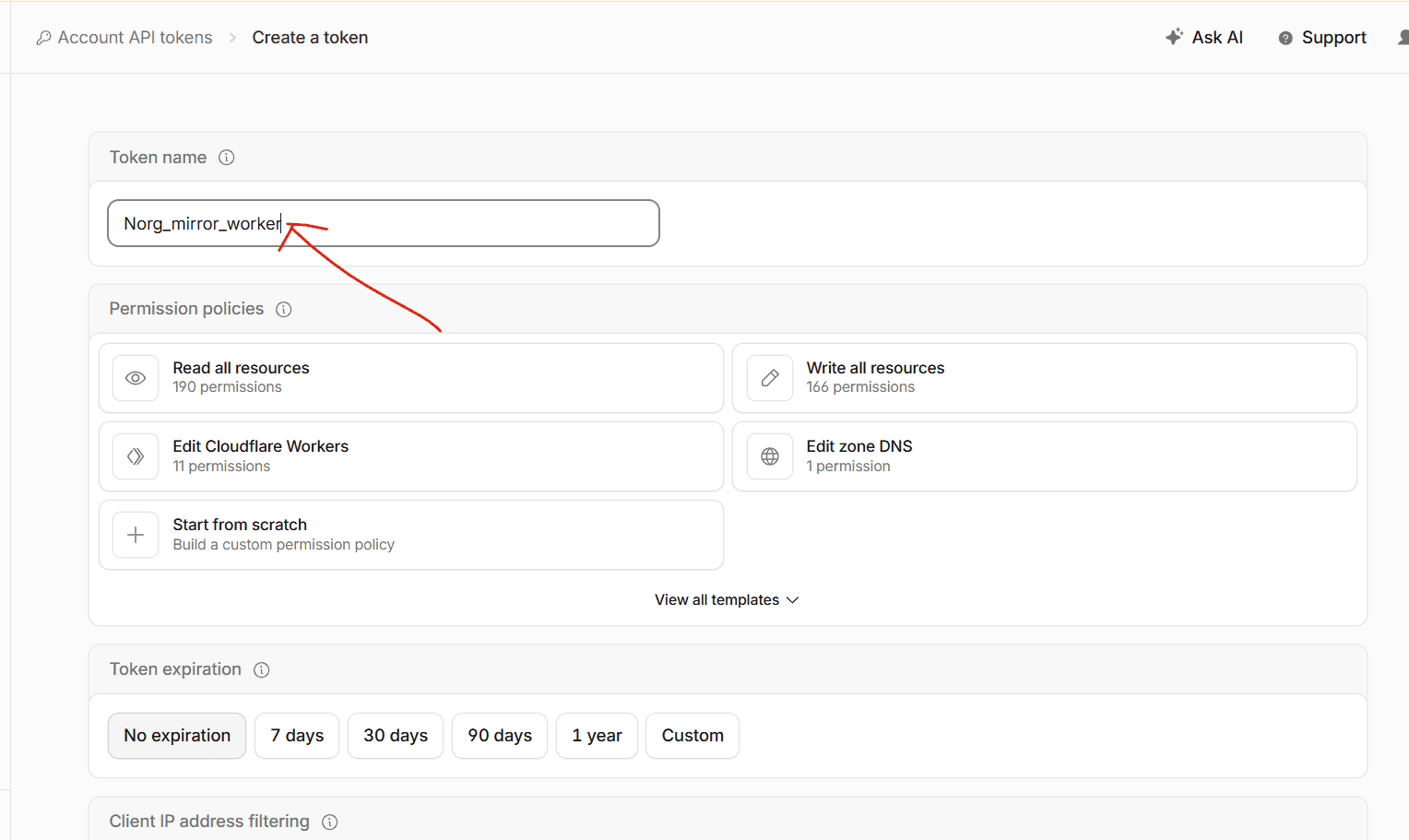
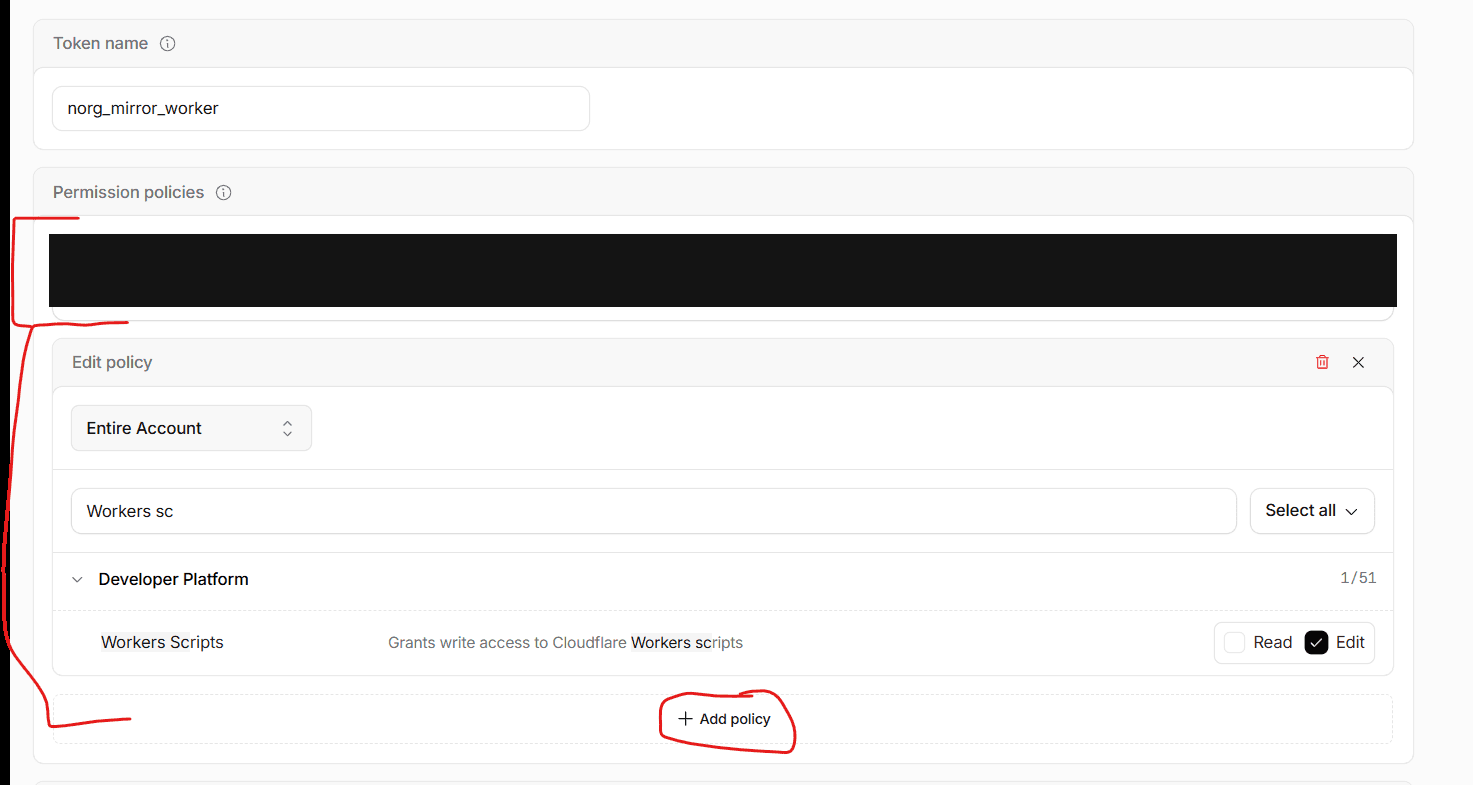
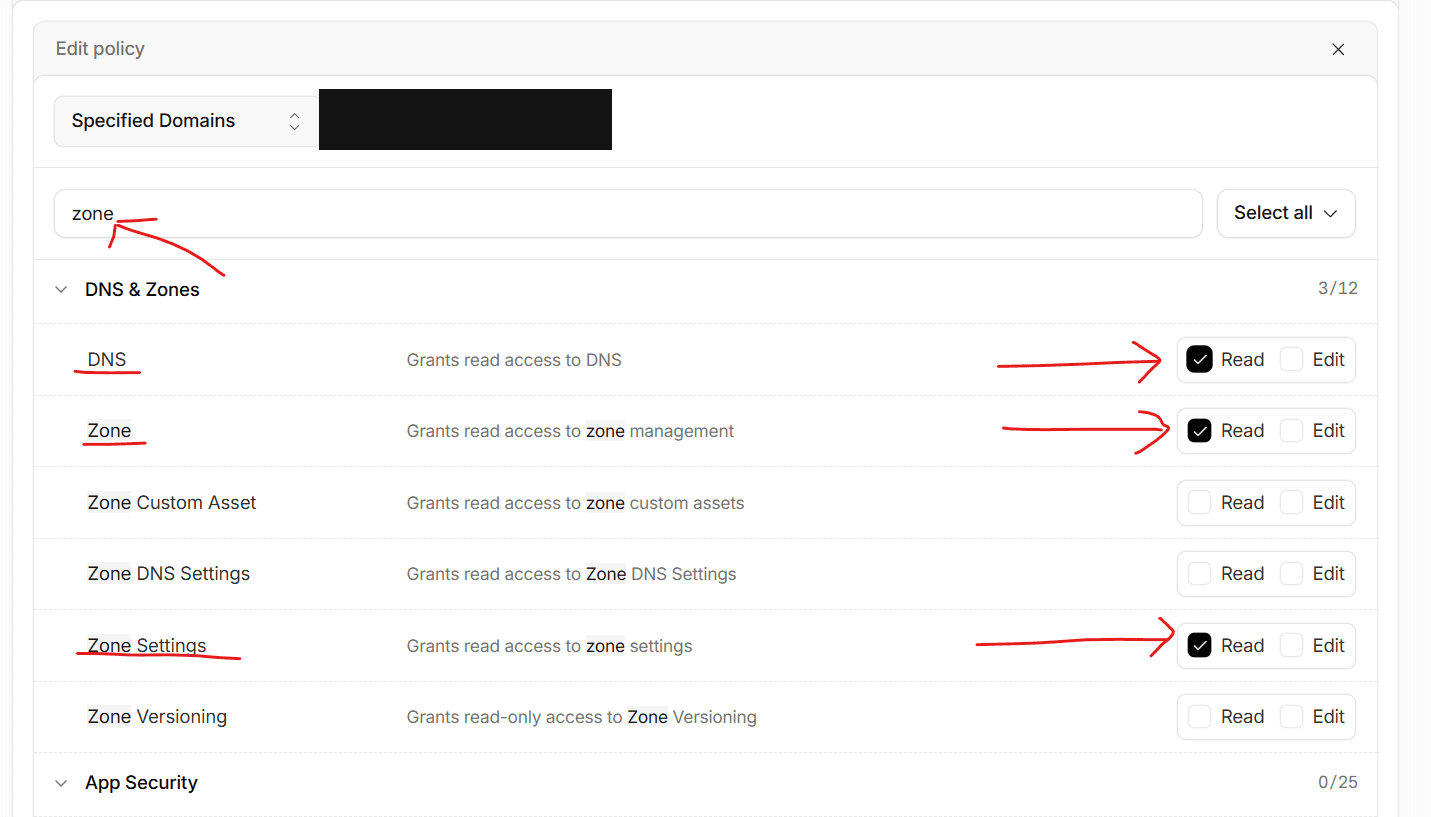
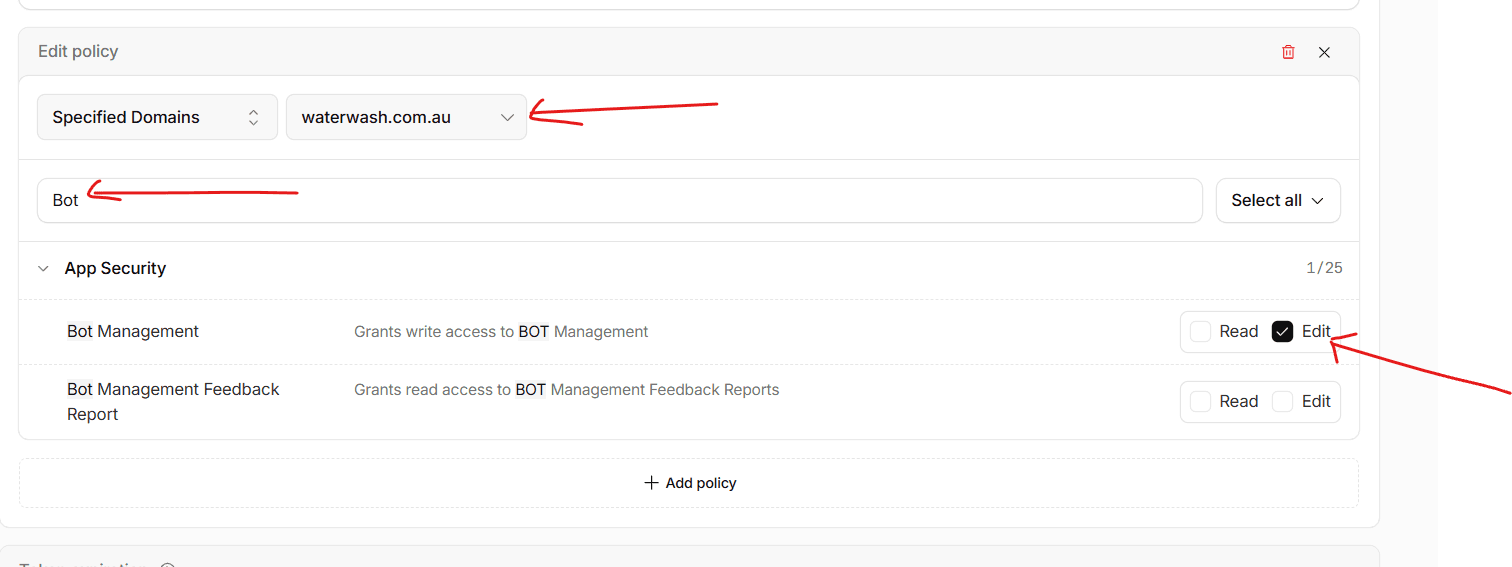
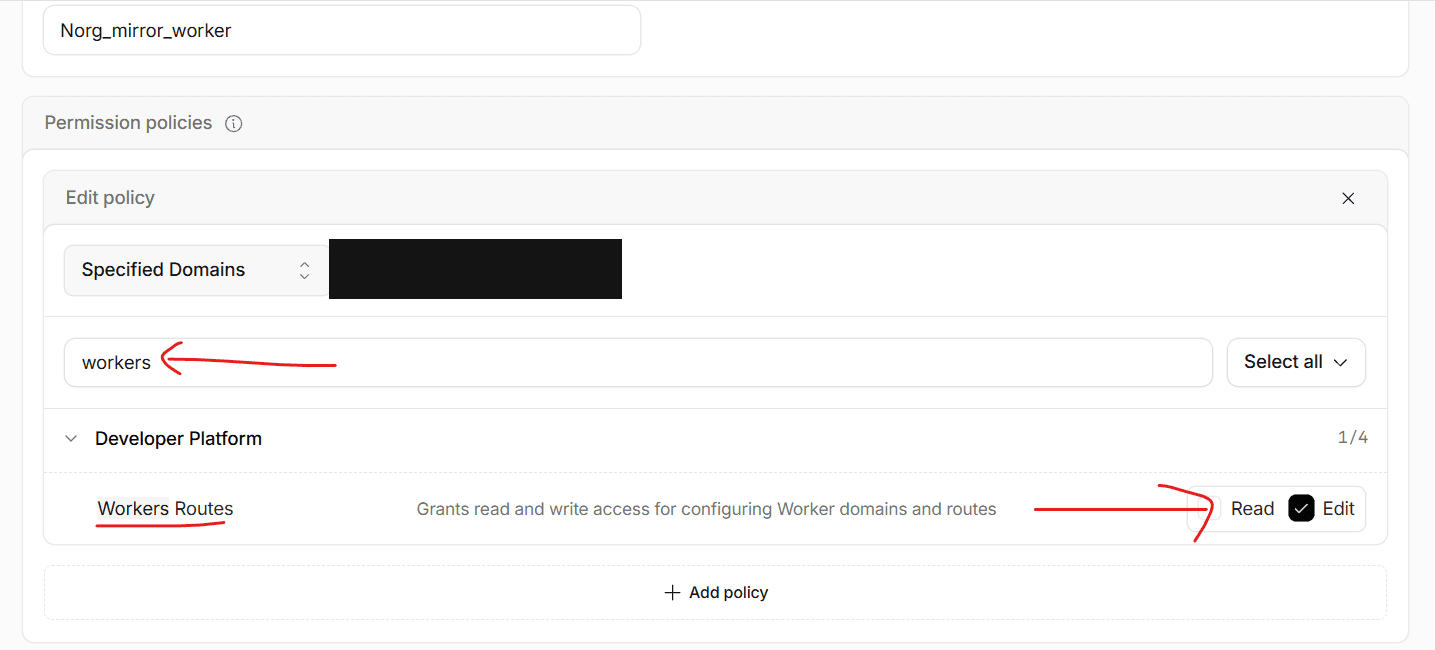
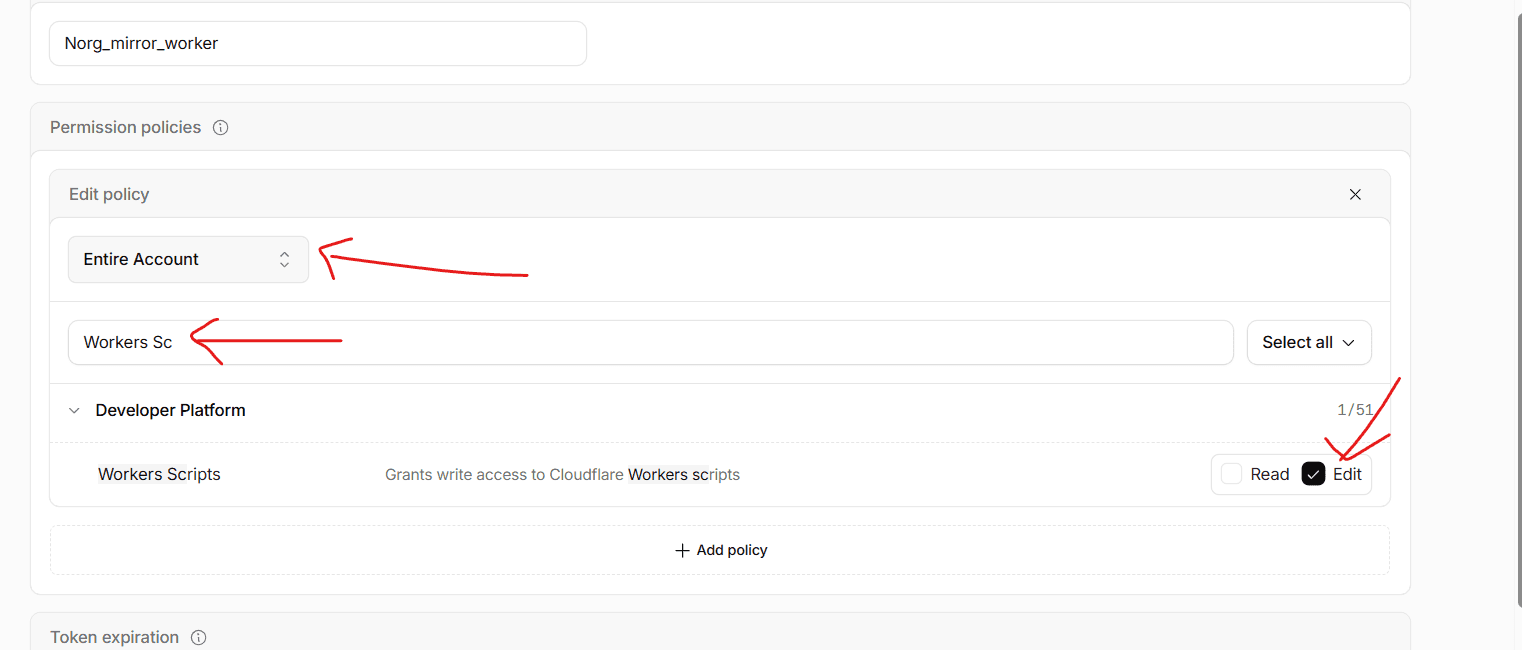
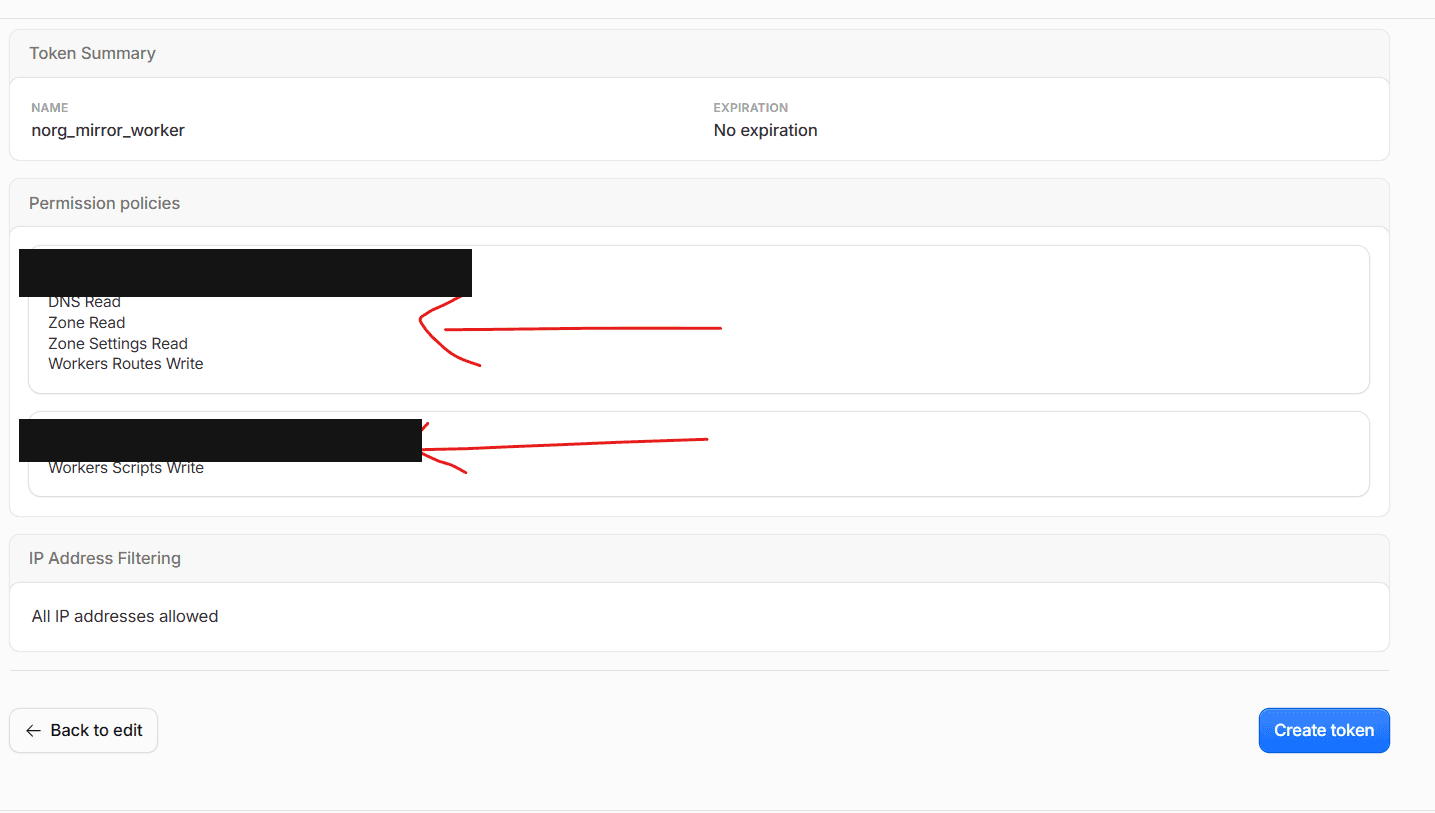
In the Cloudflare dashboard go to Account Home → Manage Account → API Tokens → Create Token → Create Custom Token (an account-owned token, which is what the walkthrough below creates). My Profile → API Tokens also works, but only if your own user role covers the whole account — a user token is capped by your role, so if your login only has domain access the account-level grant silently fails at deploy time. See token permissions & zone-only access for the fix. You will add three separate permission policies — two scoped to the single zone you are installing on, one scoped to your entire account (not the zone — that one is easy to miss, see the account-level callout below):
Policy 1 — this zone (matches the walkthrough below):
- Zone: Read — resolve your domain to a Cloudflare zone and verify the token
- DNS: Read — confirm your domain is proxied (orange-clouded)
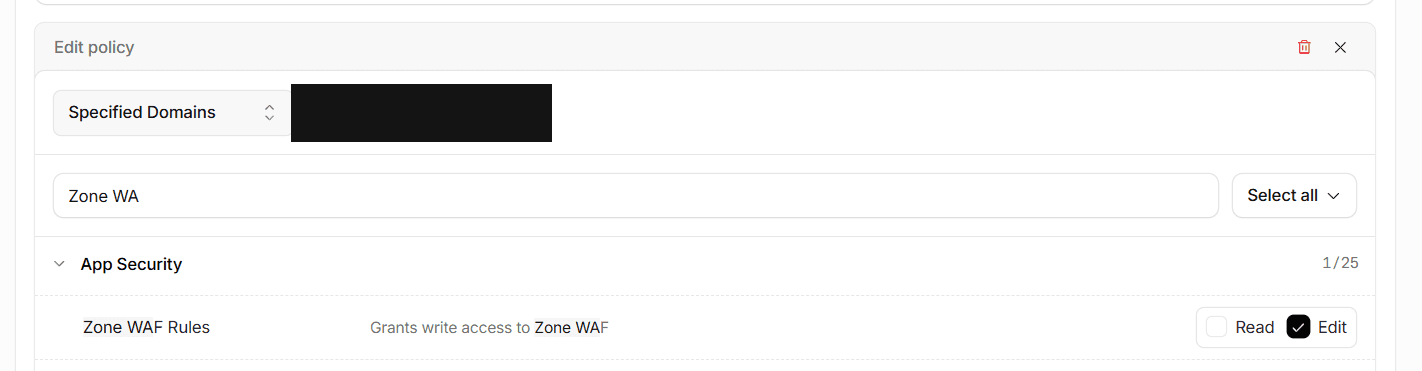
- Bot Management: Edit — detect whether Bot Fight Mode or "Block AI bots" is blocking the install. Today the install only reads this setting (so Read is all it strictly needs — if either toggle is blocking, you flip it off yourself, see the alert at the top of this page). Granting Edit now future-proofs the token for a planned NORG auto-fix of a blocking toggle, so you will not have to re-scope the token when that ships — Cloudflare's Edit includes read. In the permission picker this one is under App Security, not DNS & Zones, so search
botrather thanzoneto find it.
Policy 2 — this zone, Edit:
- Workers Routes: Edit — bind the
{domain}/*route - Zone WAF: Edit — create the skip rule that lets AI agents and the health probe past your WAF Managed Rules
Policy 3 — Entire Account, Edit (not the zone):
- Workers Scripts: Edit — upload the worker itself
Picking the right one: Zone WAF: Edit
The install creates a WAF Custom Rule via Cloudflare's Rulesets API (/zones/{zone_id}/rulesets, phase http_request_firewall_custom) so AI agents and the health probe get past your WAF Managed Rules. That needs Zone WAF: Edit — shown as "Zone WAF" in the token permission picker, not the older "Firewall Services" group. Without it the install returns a specific "missing Zone WAF:Edit" error. The rule it creates exempts only AI-agent user agents and this site's own probe requests — never all traffic — and leaves every other rule on your zone alone.
It cannot, however, reach Bot Fight Mode or "Block AI bots" — those are zone toggles outside the WAF. See the alert at the top of this page.
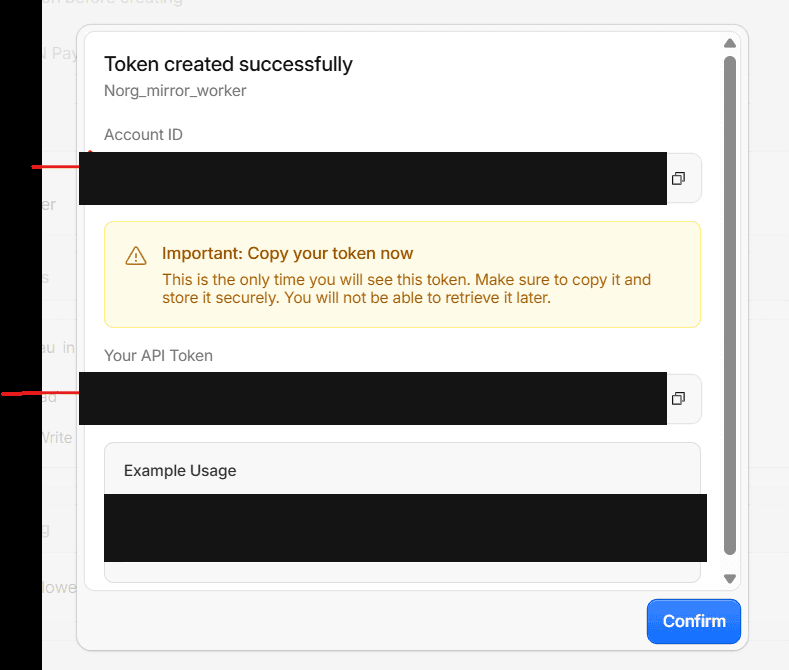
Paste the token into the install call as cf_api_token.

Run the two-pass install
With both credentials ready, call manage_edge_routing through your NORG MCP connection. Install requires both domain and cf_api_token, and is a two-pass, human-confirmed action:
- Pass 1 — preview. The tool defaults to
dry_run=true: it runs a read-only preflight (checks your Workers plan, scans for a conflicting{domain}/*route, reads Bot Fight Mode) and returns a preview plus aconfirmation_token. - Pass 2 — apply. Re-call with
dry_run=falseand thatconfirmation_tokento upload the worker, set its variables, and bind the route.
# Pass 1 — preview (read-only preflight, dry_run defaults to true)
manage_edge_routing(
    action="install",
    domain="example.com",
    cf_api_token="<your-cloudflare-api-token>",
)
# -> returns a preview + confirmation_token (requires human confirmation)

# Pass 2 — apply, carrying the token back
manage_edge_routing(
    action="install",
    domain="example.com",
    cf_api_token="<your-cloudflare-api-token>",
    dry_run=False,
    confirmation_token="<token-from-pass-1>",
)Verify the install
The worker serves NORG renders only to requests that provably come from an AI operator — the source IP must be in the operator's published ranges, or Cloudflare must mark the request a verified bot — so a curl with a spoofed agent user-agent from your own machine is deliberately passed straight through with no X-Norg-Edge header. Verify with the Site Key health probe instead; a browser user-agent must stay untouched.
# The worker is live on the route (Site Key health probe):
curl -s -H "x-norg-edge-check: <your-site-key>" https://example.com/ | head -c 200
#   {"site_id":"…","version":"…","disabled":false,"ts":…}  -> deployed, routed, key OK
#   (your own page instead of JSON -> the worker is not seeing the request)

# A normal visitor must be untouched (expect NO output):
curl -sI -A "Mozilla/5.0 (Macintosh; Intel Mac OS X 10_15_7) Chrome/125.0 Safari/537.36" \
  https://example.com/some-page/ | grep -i x-norg-edge
A JSON reply proves the worker is deployed, routed, and holding the right key. Your own page instead of JSON means the worker is not seeing the request — recheck the proxied DNS record and the {domain}/* route. Genuine agents then see X-Norg-Edge: mirror (a NORG render was served) or X-Norg-Edge: stripped (no render yet), and the worker reports a heartbeat to NORG each time it serves one.
Getting a challenge page or a non-200 instead of any of that? See the bot-blocking alert at the top of this page — your own curl looks identical to any other automated request to Bot Fight Mode / "Block AI bots" if either is on.
Why each permission is needed
Every grant below is exercised by the install code today — the one forward-looking exception (the write half of Bot Management: Edit) is spelled out in its own row rather than left implied. Nothing here is silent "might need it later" scoping.
| Permission | Scope | Used today? | Why |
|---|---|---|---|
| Zone: Read | This zone | Yes | Resolves your domain to a Cloudflare zone ID and confirms the token can see it, before anything else runs. |
| Bot Management: Edit | This zone | Yes | Reads whether the zone blocks AI bots (Bot Fight Mode, or the newer Block AI bots policy) so the preflight can warn you. The install only reads this setting today — if a toggle is blocking, you flip it off yourself in the dashboard. Granting Edit rather than Read future-proofs the token for a planned NORG auto-fix of a blocking toggle (Cloudflare’s Edit includes read); Read alone suffices for everything the install does now. This is its own Cloudflare grant: Zone Settings: Read does not cover it, and without it the check can only report “undetermined”. |
| DNS: Read | This zone | Yes | Confirms the record for your domain is proxied (orange-clouded) — a grey-clouded record would bypass the worker entirely. |
| Workers Routes: Edit | This zone | Yes | Binds the {domain}/* route to the worker on install, and removes it on uninstall. |
| Workers Scripts: Edit | Entire account | Yes | Uploads the worker script itself. This is account-scoped in Cloudflare’s permission model, not zone-scoped — there is no narrower option. |
| Zone WAF: Edit | This zone | Yes | Creates the NORG-managed WAF Custom Rule that lets AI-agent traffic and this site’s health probe past your WAF Managed Rules and Super Bot Fight Mode. It exempts only those requests — never all traffic — and leaves every other rule on the zone untouched. It cannot reach Bot Fight Mode or “Block AI bots”; see the alert at the top of the page. |
Cloudflare API token permissions
The complete policy for one custom token, verified against the Cloudflare calls in apps/api/app/services/edge_routing/customer_zone_client.py — nothing there falls back to NORG's own credentials. Two policy blocks (the screenshot walkthrough in step 2 splits the zone block into reads and edits — same grants, different layout; Edit always includes Read):
Account → your Cloudflare account
- Workers Scripts: Edit — Uploads, updates and removes the NORG worker script and its cron trigger (/accounts/{id}/workers/scripts/{name}, …/schedules).
- Workers Scripts: Read — Lists the account’s workers in preflight — the read-only probe that proves the upload will not 403 — and lets NORG view the worker and its schedule afterwards.
- Workers Tail: Read — Live log tailing when NORG is debugging an install with you. Not called by the install itself; grant it so NORG can tail without asking for a new token.
Zone → your domain ONLY (Specific zone, never All zones)
- Zone: Read — Resolves your domain to a zone and account id (GET /zones) and reads the zone plan (GET /zones/{id}) for the free-plan warning.
- Workers Routes: Edit — Binds {domain}/* to the worker (/zones/{id}/workers/routes) and removes it on uninstall or rollback.
- DNS: Read — Confirms the record is proxied (orange cloud) before installing (/zones/{id}/dns_records).
- Zone Settings: Read — Reads individual zone settings such as always_use_https in preflight (/zones/{id}/settings/{setting}).
- Zone WAF: Edit — Creates and maintains the NORG-managed WAF skip rule (/zones/{id}/rulesets/phases/http_request_firewall_custom/entrypoint).
- Bot Management: Edit — Reads Bot Fight Mode and the Block AI bots policy (GET /zones/{id}/bot_management) and, only when you confirm a fix, writes them back (PUT).
If your Cloudflare login only has zone (domain) access
A token created under My Profile → API Tokens is a user token, silently capped by your own role in the account. The picker lets you add Account → Workers Scripts: Edit and creates the token without complaint — but if your user only holds a zone-scoped role, that account-level grant does nothing. NORG's preflight then resolves the zone (the zone grants work) and the install fails with Worker upload failed: Authentication error — Cloudflare never names the missing permission.
The fix is an account-owned token. An administrator of the Cloudflare account creates it under Account Home → Manage Account → API Tokens with the policy above and shares it with you. Account-owned tokens are not capped by any one user's role. Send your admin this:
Subject: Cloudflare API token for NORG edge routing (account-owned)

Please create an ACCOUNT-OWNED API token (Account Home -> Manage Account ->
API Tokens -> Create Token -> Create Custom Token -> Start from scratch).
A token from My Profile -> API Tokens will not work for this — it is capped
by the creating user's role.

Name: norg-edge-router

Permissions (two policy blocks on one token):

  Account -> <our account>
    - Workers Scripts : Edit
    - Workers Scripts : Read
    - Workers Tail    : Read

  Zone -> Specific zone -> <our-domain.com>   (NOT "All zones")
    - Zone            : Read
    - Workers Routes  : Edit
    - DNS             : Read
    - Zone Settings   : Read
    - Zone WAF        : Edit
    - Bot Management  : Edit

Optional hardening: restrict Client IP Address Filtering to NORG's egress
IPs (NORG can supply the current list) and set a TTL.

Please verify it before sharing — this must return 200, not 403:

  curl -s -o /dev/null -w "%{http_code}" \
    https://api.cloudflare.com/client/v4/accounts/<ACCOUNT_ID>/workers/scripts \
    -H "Authorization: Bearer <TOKEN>"

Then send me the token through <your secrets channel>. I will paste it
into NORG; it is stored encrypted and never shown again.
Verify before sharing. This read-only check proves the account grant works (the account ID is on the zone's Overview page, right-hand column):
curl -s -o /dev/null -w "%{http_code}" \
  https://api.cloudflare.com/client/v4/accounts/<ACCOUNT_ID>/workers/scripts \
  -H "Authorization: Bearer <TOKEN>"
# 200 -> the token can reach Workers Scripts on this account
# 403 -> capped (user token) or missing grant; the install would fail
What this token can see — the honest limits
Cloudflare token policies support exactly three resource types — User, Account and Zone. There is no per-worker or per-script scope, so a token that can deploy NORG's worker can list and modify every worker in that account. That is a Cloudflare limitation, not a NORG design choice. Every call NORG makes goes through customer_zone_client.py with the script name passed in explicitly — only NORG's own script family, norg-edge-router or norg-edge-router-<8 hex chars>. No code path reads or edits any other script, and the account admin sees every call in the Cloudflare Audit Log.
Mitigations Cloudflare does support — all recommended:
- Scope the zone block to the single domain, never "All zones".
- Client IP Address Filtering — restrict the token to NORG’s egress IPs (ask your NORG contact for the current list).
- TTL — give the token an end date. When Cloudflare rejects a stored token NORG stops retrying and marks it invalid.
- Revoke at any time from Manage Account → API Tokens; the worker keeps serving as installed, only the update path stops.
If account-wide worker visibility is still unacceptable:
- Move the domain into its own Cloudflare account. Cloudflare supports zone transfers between accounts; an account token in a one-zone account can only see that account’s workers.
- Use the Deploy button or manual install instead — NORG never receives a token, but you redeploy the worker yourself when a new version ships.
Naming notes for the permission picker: there is no separately named "Workers Observability" group — Workers Scripts: Read plus Workers Tail: Read cover the Workers dashboard and live tail. And Bot Management lives under App Security, so search bot rather than zone.
Gotchas
Everything on this list was learned debugging real installs — scan it before concluding an install, a setting, or a test is broken.
Bot settings
- A blocked install does not mean blocked traffic. Bot Fight Mode challenged NORG's scripted, datacenter-IP health probe while browser and even plain-curl requests from other networks sailed through. A failed probe proves only that the zone challenges unknown automation — not that visitors or crawlers are blocked. The converse caution also holds: real AI crawlers come from datacenter networks too, so some of their traffic may still be challenged — after install, the served-traffic breakdown tells you empirically.
- Classic Bot Fight Mode cannot be excepted, by anyone. It runs outside the Ruleset Engine, so no WAF rule — NORG's or yours — can skip it, and it has no verified-bot allowlist (that is a Super Bot Fight Mode feature). It is the Free zone plan's toggle. See the alert at the top.
- Super Bot Fight Mode is fine — leave it on. The install's WAF skip rule already exempts AI agents and the health probe from it, along with your WAF Managed Rules. Details in the alert at the top.
- “Block AI bots” blocks in two modes, via its own rule. Both "Block on all pages" (
block) and "Block only on ad pages" (only_on_ad_pages) count as blocking, and Cloudflare enforces it with its own WAF custom rule — which the NORG skip rule does not bypass. From 15 September 2026 it is replaced by separate AI training / search / user controls; set each to allow. See the alert at the top. - A green install can still be invisible: check robots.txt. Cloudflare's managed robots.txt setting — "Set your preference to block training in robots.txt" (
is_robots_txt_managed) — adds a managedDisallow: /for ClaudeBot, GPTBot, Google-Extended and five more. It intercepts nothing, so the health probe passes and verification goes green — the crawlers simply read the file and never come. Turning off "Block AI bots" does not clear it; it is a separate toggle. Confirm by fetching/robots.txtand looking for aBEGIN Cloudflare Managed contentblock, then purge the cached copy after switching it off. See the alert at the top.
Cloudflare API traps (for agencies using their own token)
- The old Bot Fight Mode read endpoint is dead.
GET /zones/{id}/settings/bot_fight_modenow returns1003 Undefined zone settingon every zone, unconditionally. The live read isGET /zones/{id}/bot_management— which needs the token's own Bot Management grant (under App Security in the permission picker — search "bot", not "zone"; Zone Settings: Read does not cover it). Without that grant the state reads "undetermined" forever. - Writing /bot_management is PUT, not PATCH.
PATCHreturns10405 Method not allowed for this authentication schemeeven when the token has Bot Management: Edit. UsePUT /zones/{id}/bot_managementwith only the fields you are changing. - There are two different “Free plans”. The account-wide Workers plan (100k requests/day cap — a
/*route over cap errors ALL traffic, see the red alert) and the per-zone zone plan (Free zone ⇒ classic Bot Fight Mode). They are independent axes — check both. - Workers Scripts: Edit is account-scoped only. Cloudflare has no zone-level variant of this permission — the account-wide grant is the narrowest option that exists. See why each permission is needed.
- A My Profile token is capped by your own role. A user token (My Profile → API Tokens) can carry Account → Workers Scripts: Edit and still answer 403 on the upload, because it can never exceed the creating user's role — a zone-only login gets a zone-only token no matter what the picker shows. Symptom: preflight resolves the zone, then
Worker upload failed: Authentication error. Fix: an account admin mints an account-owned token — see token permissions & zone-only access.
Install & worker behavior
- A failed install rolls itself back — best-effort, not guaranteed. On failure the install removes the worker route it created and restores your previous WAF ruleset, so the normal case leaves your zone as it was and you can simply fix the reported cause and re-run. The rollback is best-effort though: if Cloudflare rejects or times out either call, the install still reports the failure, but the route can stay bound or the NORG WAF exemption can stay live. Check
waf_skip_rule.rolled_backin the response (and the zone's routes) before retrying — if it says the restore did not happen, undo it by hand first. The worker script is left on the account either way, which is harmless once nothing routes to it. - An installed-but-unentitled worker is deliberately invisible. Until NORG activates the site, the worker passes every request through untouched with zero headers — visitors cannot tell it is installed. So "no
X-Norg-Edgeheader" can mean not yet entitled, not only not installed. - ?agent=true on an unrendered page looks like “not working”. When no render exists yet for that page the override serves the untouched origin with no
X-Norg-Edgeheader at all — indistinguishable from a worker that is not installed. It stays that way no matter how often you retry, because an override miss deliberately does not enqueue a render: QA traffic must not trigger renders across the catalogue. Only a crawl creates the mirror, and once it exists the same URL returnsX-Norg-Edge: mirror. The intermediateX-Norg-Edge: strippedbelongs to the ordinary agent-classified path (a real crawler user-agent, no override), not to?agent=true— so do not wait for it here. - ?agent=true is the only query override the worker reads.
?mirror=true— or any other parameter — does nothing: it passes through to your origin as an ordinary query string. - Test from a browser, not from curl. Scripted requests may be challenged by Bot Fight Mode; a real browser passes its JavaScript challenge. Browser
?agent=trueis the reliable self-test — see step 4 and the alert at the top.